
Skills
Add expertise to an agent or direct a specialist using the slash menu in chat
Skills let you add focused expertise to a turn before you send it. When a request needs particular knowledge, you point the agent at the right skill from the chat instead of spelling everything out in the message. You add skills with the slash menu, and they travel with your next message.
Open the slash menu
In the chat, type / at the start of a line or after a space. A menu opens with what you can add. Keep typing to filter the list, use the arrow keys to move through it, and press Enter or click to select. Press Escape to close it.
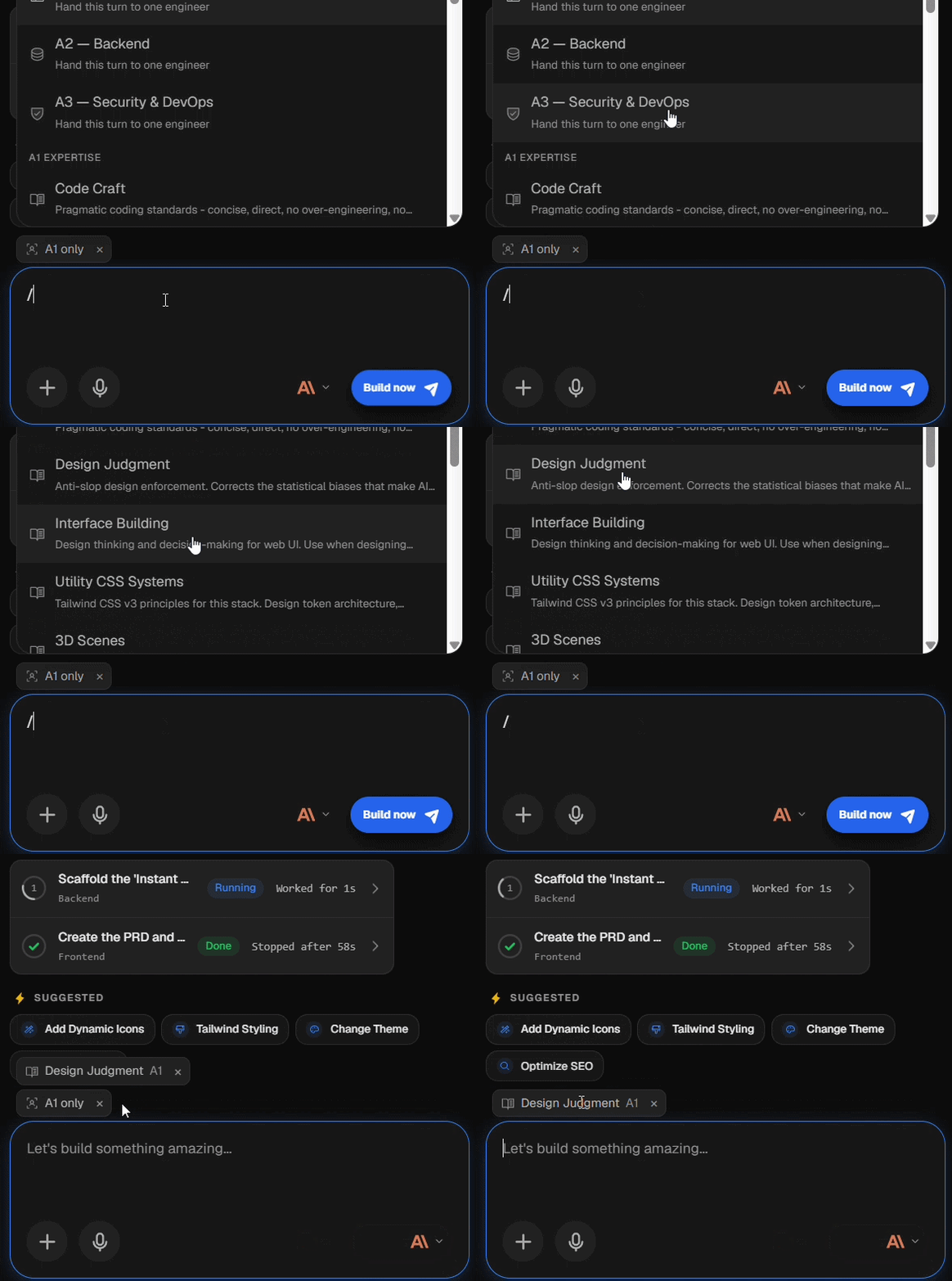
What the menu offers depends on the agent you are using:
- With Aris Mini, it lists the expertise you can add to the turn.
- With Ameca, it lets you add expertise and also assign the turn to a specialist.
The slash menu is available with Aris Mini and Ameca. Choose your agent from the agent selector in the chat. See PlutoAI Agents.
Add expertise to a turn
Type /, then pick a skill. It appears as a pill above the message box rather than as text inside your message, so your prompt stays clean. The agent applies that expertise when it works on your next message.
With Aris Mini you can add up to five skills to a single turn, and the menu stays open so you can add several in a row. A counter shows how many you have added. To remove one, select it again to unpin it. Skills apply to the message you are about to send and reset afterward, so you choose the right expertise fresh for each turn.
Direct a specialist with Ameca
When Ameca is your agent, the slash menu also lists its specialists: A1 for the front-end, A2 for the back-end, and A3 for security and deployment. Selecting one tells Ameca to hand that turn to that specialist. This is useful when you want to focus on a single area, for example asking the front-end specialist to refine one screen.
The specialist is set for that next message only. Most of the time you do not need it: describe the outcome and let Ameca decide who does the work. See PlutoAI Agents for how Ameca and its specialists work together.
Reference a file with @
In the same message box, type @ to point the agent at a specific file in your project. Start typing the name to filter, then pick the file to add a reference to it in your message. This is a quick way to tell the agent exactly which file you mean.